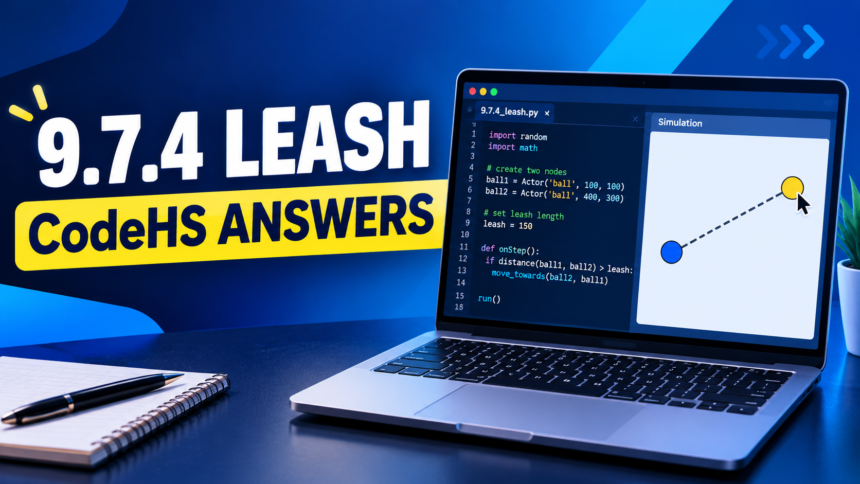
The 9.7.4 Leash CodeHS Answers exercise teaches students how to create interactive graphics using JavaScript. The task is simple: create a yellow ball and a line that behaves like a leash. When the mouse moves across the canvas, the ball follows the pointer while the line stretches from the center of the screen to the ball.
Although this activity looks easy, it introduces several important programming concepts, including global variables, graphic objects, coordinates, functions, and mouse events. Understanding how these concepts work together will help you solve the exercise and prepare for more advanced CodeHS graphics assignments.
In this guide, you will find a working JavaScript solution, a step-by-step explanation of the code, common mistakes to avoid, and practical tips for testing your program.
What Is the 9.7.4 Leash CodeHS Exercise?
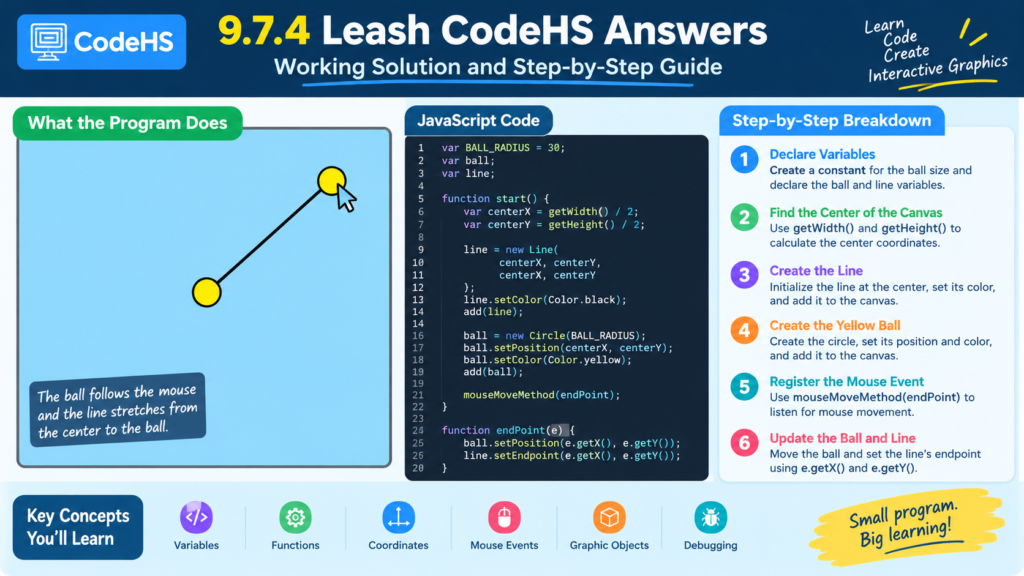
The Leash exercise is a JavaScript Graphics activity in CodeHS. It focuses on making graphical objects respond to user input rather than remain stationary on the screen.
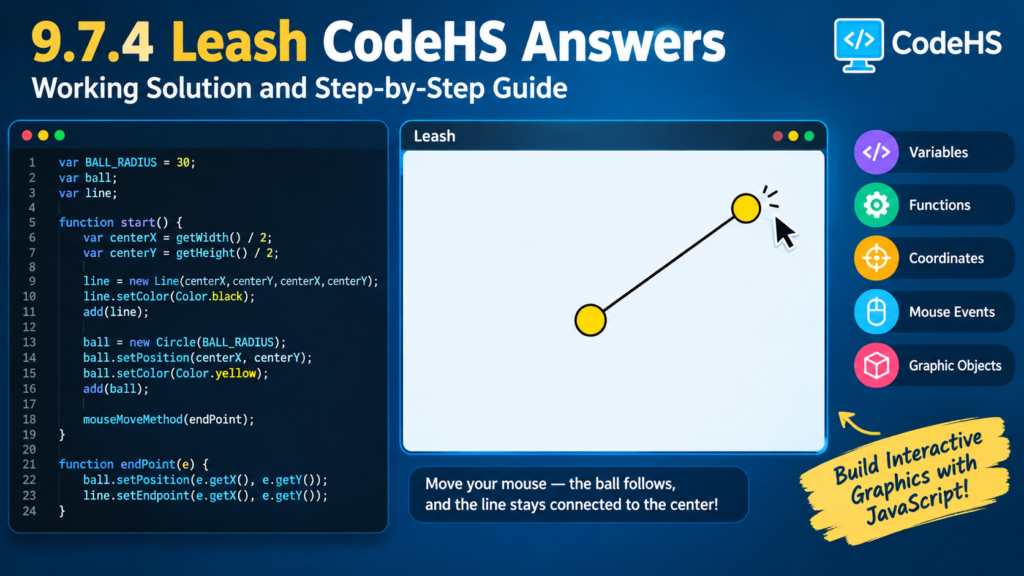
The program contains two main objects: a circle representing the ball and a line representing the leash. Initially, both objects are positioned at the center of the graphics canvas. When the mouse moves, the ball changes position, and the endpoint of the line follows the same coordinates.
The main goal is to keep the line connected to the moving ball while its other endpoint remains fixed. This behavior demonstrates how mouse events can control objects in an interactive program.
The exact lesson number may differ between course versions. If your course uses a different number for a similar activity, follow the requirements displayed in your own CodeHS assignment.
| 🔗 You may also like: |
|---|
| Classroom 15x: Interactive Learning and Digital Education |
| AI Game Development for Personalized Play Experiences |
9.7.4 Leash CodeHS Answers: Complete Working Solution
The following example demonstrates the core logic of the Leash exercise. It creates the line and circle once, places them in the center, and registers a mouse movement handler.
JavaScript Code
var BALL_RADIUS = 30;
var ball;
var line;

function start() {
    var centerX = getWidth() / 2;
    var centerY = getHeight() / 2;

    line = new Line(
        centerX,
        centerY,
        centerX,
        centerY
    );
    line.setColor(Color.black);
    add(line);

    ball = new Circle(BALL_RADIUS);
    ball.setPosition(centerX, centerY);
    ball.setColor(Color.yellow);
    add(ball);

    mouseMoveMethod(endPoint);
}

function endPoint(e) {
    ball.setPosition(e.getX(), e.getY());
    line.setEndpoint(e.getX(), e.getY());
}
This example follows the standard CodeHS JavaScript Graphics pattern for a ball-and-leash interaction. The line is added before the ball so that the ball can appear above it.
Important: If your assignment provides starter code or requires particular variable names, colors, or function names, retain those requirements when adapting the example.
How the 9.7.4 Leash CodeHS Solution Works
The program has two main functions. The start() function prepares the graphics and registers the mouse event handler. The endPoint(e) function updates the positions of the existing objects whenever the mouse moves.
This separation makes the program easier to understand. Setup happens once, while movement happens in response to user input.
1. Declare the Variables
var BALL_RADIUS = 30;
var ball;
var line;
The first line defines a constant-style variable for the ball’s radius. The value 30 determines the circle’s radius, not its diameter.
The ball and line variables store references to the two graphic objects. They are declared outside the functions so both start() and endPoint(e) can access the same objects.
This is important because the mouse handler must update the ball and line created during setup. Creating new local variables with the same names inside start() could prevent the handler from accessing the intended objects.
2. Find the Center of the Canvas
var centerX = getWidth() / 2;
var centerY = getHeight() / 2;
The getWidth() function returns the canvas width, while getHeight() returns its height. Dividing each value by two calculates the center coordinates.
For example, if a canvas is 400 pixels wide and 400 pixels tall, its center is at coordinates (200, 200).
Using the actual canvas dimensions is more flexible than entering fixed coordinates. If the canvas size changes, the program can still calculate its center correctly.
3. Create the Leash Line
line = new Line(
    centerX,
    centerY,
    centerX,
    centerY
);

line.setColor(Color.black);
add(line);
A Line object requires four coordinate values: the starting X position, starting Y position, ending X position, and ending Y position.
Here, both endpoints initially use the center coordinates. As a result, the line begins with zero length and may not be visible until the mouse moves.
The setColor(Color.black) statement makes the line black. The add(line) statement adds the object to the graphics canvas so it can be displayed.
Later, the program changes only the line’s endpoint. Its starting point stays at the center, creating the leash effect.
4. Create the Yellow Ball
ball = new Circle(BALL_RADIUS);
ball.setPosition(centerX, centerY);
ball.setColor(Color.yellow);
add(ball);
The Circle constructor creates the ball with a radius of 30. The setPosition() method places its center at the middle of the canvas.
The setColor() method changes the ball’s color to yellow, and add(ball) displays it on the screen.
The ball is created only once. The program does not need a new circle every time the mouse moves because the position of the existing circle can be updated whenever necessary.
5. Register the Mouse Movement Handler
mouseMoveMethod(endPoint);This statement connects the mouse movement event to the endPoint function. When the mouse moves over the graphics canvas, CodeHS calls the registered function and supplies information about the event.
Notice that endPoint appears without parentheses. Passing the function name registers it as a callback. Writing endPoint() would call the function immediately instead of registering it in the intended way.
Without this event handler, the ball and line could appear correctly but would not respond to mouse movement through this callback.
6. Move the Ball and Update the Line
function endPoint(e) {
    ball.setPosition(e.getX(), e.getY());
    line.setEndpoint(e.getX(), e.getY());
}
The parameter e represents the mouse event. It provides methods for obtaining the mouse’s current coordinates.
e.getX()returns the horizontal mouse coordinate.e.getY()returns the vertical mouse coordinate.ball.setPosition()moves the circle to those coordinates.line.setEndpoint()moves the line’s endpoint to the same location.
Both objects receive identical coordinates, so the line continues to meet the ball as it follows the mouse.
| 🔗 You may also like: |
|---|
| Gaming Updates from eTrueSports and eTrueGames |
| Improve PC Gaming Performance |
Understanding Mouse Events and Coordinates
Mouse events allow a program to respond to user actions. Instead of waiting for a button click or running a movement loop, the Leash program responds whenever the mouse position changes.
The canvas uses an X and Y coordinate system. The X coordinate increases toward the right, while the Y coordinate increases downward. The top-left corner represents the origin, (0, 0).
For example, when the mouse moves toward the bottom-right corner, both coordinate values generally increase. The event handler reads those values and uses them to position the ball and line endpoint.
This same principle is useful in other graphics projects, including drawing applications, draggable objects, interactive diagrams, and simple games. You can learn more about event-driven programming and Cartesian coordinate systems to understand the concepts behind this exercise.
Common 9.7.4 Leash CodeHS Errors and Fixes
Even a short program can produce unexpected results if a variable, method, or event handler is incorrect. Checking the following issues can help you find the problem without rewriting the entire program.
The Ball Does Not Move
If the ball remains in the center, verify that mouseMoveMethod(endPoint) appears inside start(). Make sure the function name matches the registered callback exactly.
Also confirm that the program runs without syntax errors and that the mouse is moving over the graphics canvas.
The Ball Moves but the Line Does Not
This usually means the ball’s position is being updated, but the line’s endpoint is not.
Check that your event handler includes:
line.setEndpoint(e.getX(), e.getY());The line endpoint should use the same coordinates as the ball. The fixed starting point should remain unchanged.
A Variable Is Undefined
Check where ball and line are declared. Both should be accessible to the mouse handler.
Avoid accidentally creating separate local variables inside start() when you intend to assign objects to the existing outer variables. Also verify that the objects are initialized before the handler tries to update them.
The Line or Ball Is Missing
Creating an object does not automatically guarantee that it will appear on the canvas. Check that add(line) and add(ball) are present.
The order of these statements can also affect which object appears in front. Adding the line first and the ball afterward generally places the ball above the line.
The Code Produces a Syntax Error
JavaScript is case-sensitive. For example, getX() and getx() are different names. Check the spelling of mouseMoveMethod, setPosition, and setEndpoint, as well as the opening and closing parentheses and braces.
If your course uses a specific version of the graphics library, follow the method names and requirements in its starter code.
How to Test Your Leash Program
After entering the code, run the program and test each part of the expected behavior.
- Check the starting position. The yellow ball should appear in the center of the canvas. The line starts with both endpoints at the center, so it may initially be invisible.
- Move the mouse slowly. The ball should follow the pointer, and the line should stretch from the center toward the ball.
- Test different directions. Move the mouse toward the top, bottom, left, right, and corners of the canvas.
- Check the fixed endpoint. The line should remain anchored at the center rather than moving as a complete object.
- Review any errors. If one part fails, inspect the related statement before changing working sections of the program.
Testing individual behaviors makes it easier to identify mistakes and understand how each statement contributes to the final result.
Why You Should Create the Objects Only Once
A common beginner mistake is to create a new circle or line inside the mouse event function. Because mouse movement can trigger the handler repeatedly, this approach may create many graphic objects instead of moving the original ones.
The better approach is to create the objects inside start() and store their references in variables. The event handler then modifies those objects whenever the mouse moves.
This design is more efficient and easier to maintain. It also introduces an important programming concept: an object can retain its identity while its properties, such as position, change over time.
What This Exercise Teaches You
The Leash assignment combines several foundational JavaScript graphics concepts in one small project.
- Variables: Store references to graphic objects so they can be accessed later.
- Functions: Separate the initial setup from the movement behavior.
- Coordinates: Identify positions on the graphics canvas.
- Mouse events: Respond to user input through a callback.
- Object methods: Change an existing circle’s position and a line’s endpoint.
- Debugging: Find errors by checking each required behavior separately.
These skills are useful beyond CodeHS. Interactive websites, graphical interfaces, and games often respond to events and update the state of existing objects in similar ways.
| 🔗 You may also like: |
|---|
| Mimshacks: Technology and Digital Tools |
| QuikConsole.com Explained |
Final Thoughts
The 9.7.4 Leash CodeHS Answers exercise becomes much easier when you understand the relationship between the ball, the line, and the mouse event. Create both graphic objects once, position them at the center, and register the movement handler.
When the mouse moves, use e.getX() and e.getY() to move the ball and update the line’s endpoint. Keeping the same coordinates for both objects ensures that the leash remains connected to the ball while its starting point stays fixed.
Rather than memorizing the code alone, focus on why each method is needed. Understanding variables, coordinates, callbacks, and object updates will make it easier to solve future JavaScript Graphics assignments and build more interactive programs.
FAQs
What is the correct answer for 9.7.4 Leash CodeHS?
The core solution creates a circle and a line in start(), registers a mouse movement handler with mouseMoveMethod(), and updates the circle’s position and the line’s endpoint using the event’s X and Y coordinates.
Why does the line start at the center?
The line’s first endpoint is initialized using half the canvas width and half the canvas height. The program changes only its other endpoint, keeping the line anchored at the center.
What does mouseMoveMethod(endPoint) do?
It registers endPoint as the function that CodeHS should call when the mouse moves over the graphics canvas. The function receives event information that includes the current mouse coordinates.
Why are ball and line declared outside start()?
Declaring them outside the functions allows both the setup function and the event handler to access the same graphic objects. This lets the program update existing objects after initialization.
Why does the line sometimes appear behind the ball?
Graphics drawing order can affect which object appears in front. Adding the line before the circle generally allows the circle to appear above the line.
Is the Leash exercise always numbered 9.7.4?
Not necessarily. Lesson numbering can differ between courses or curriculum versions. Use the assignment instructions in your own CodeHS course to confirm the required behavior and any specific coding requirements.