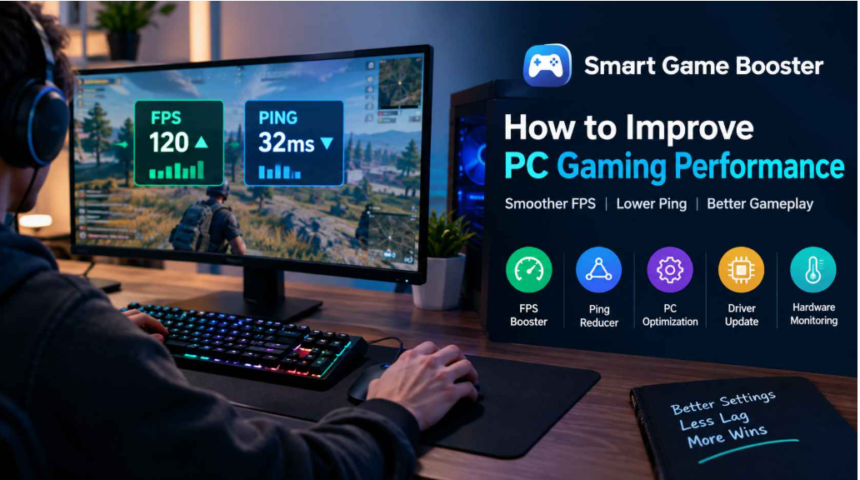
PC gaming performance depends on more than having an expensive graphics card or a powerful processor. Background applications, outdated drivers, demanding graphics settings, and unstable network connections can all affect the experience. The good news is that several practical adjustments can help gamers get more consistent performance from their existing computers.
An FPS Booster can be useful for players who experience frequent frame drops, stuttering, or inconsistent performance during demanding games. However, improving gameplay usually requires looking at both system performance and network quality. Understanding the difference between these issues makes it easier to choose the right solution instead of changing settings at random.
Smart Game Booster is one Windows utility designed to help with these challenges. It combines PC optimization, game performance tools, network acceleration, and hardware monitoring in one application. Here is how gamers can approach performance optimization and where a tool like this may fit into their routine.
1. Understand What Is Causing Game Lag
Before changing settings, identify the problem affecting your gameplay. Low frame rates and network lag can feel similar, but they have different causes.
Low FPS means the computer is not rendering frames quickly enough. Players may notice choppy movement, delayed visual updates, or stuttering when entering crowded areas.
High ping means data takes longer to travel between the player’s computer and the game server. This can cause delayed actions, opponents appearing to move unpredictably, or noticeable pauses in online matches.
Frame-time spikes are another common issue. Even when the average frame rate looks acceptable, sudden delays between frames can make a game feel uneven.
Start by monitoring your frame rate, CPU and GPU usage, memory consumption, and network latency. These measurements help determine whether the problem comes from the computer, the internet connection, or a combination of both.
2. Reduce Background Activity Before Launching a Game
Applications running in the background can compete with games for processor time, memory, storage access, and network bandwidth. Browser tabs, software updates, file synchronization, and unnecessary utilities may contribute to performance problems on systems with limited resources.
A simple optimization routine can make a difference:
- Close applications you do not need during gameplay.
- Pause large downloads and cloud synchronization temporarily.
- Check Task Manager for processes consuming unusually high CPU or memory resources.
- Disable unnecessary startup applications.
- Restart the computer if it has been running for an extended period and performance has deteriorated.
Windows Task Manager provides a useful starting point because it shows which applications are using system resources.
Smart Game Booster offers PC optimization features intended to reduce unnecessary background activity and prepare the system for gaming. Its automatic boosting functionality can also help simplify the process of switching from everyday computer use to a gaming session.
The key is to avoid closing unfamiliar Windows services or essential security processes simply to free up resources. Aggressive changes can cause instability without delivering meaningful performance improvements.
3. Adjust Graphics Settings for More Consistent FPS
Graphics settings often have a greater influence on frame rate than small system tweaks. Players do not necessarily need to use the lowest possible settings, but they should understand which options place the greatest demands on their hardware.
Start with these adjustments:
- Lower shadows: High-quality shadows can consume considerable GPU resources.
- Reduce demanding effects: Volumetric lighting, reflections, and complex particle effects may affect performance.
- Adjust resolution: A lower rendering resolution can improve frame rates when the graphics card is struggling.
- Review ray tracing: Turning it off can provide a substantial performance improvement in supported games.
- Use suitable upscaling options: Supported technologies can render internally at a lower resolution and reconstruct the image for display.
Players should also select a frame-rate limit appropriate for their hardware and monitor. A stable frame rate can sometimes feel better than a higher average FPS accompanied by frequent drops.
Smart Game Booster provides game optimization tools and performance-related settings that can help users manage their gaming setup. Nevertheless, results depend on the title, hardware configuration, and existing settings. No software can guarantee the same FPS improvement across every computer.
4. Keep Graphics Drivers and Windows Updated
Drivers allow Windows and games to communicate properly with hardware. Outdated or problematic graphics drivers can cause crashes, visual glitches, compatibility issues, and inconsistent performance in some titles.
Visit the appropriate hardware manufacturer’s website or use its official driver utility to check for updates. Graphics driver updates are particularly worth investigating after a new game release or when a specific title begins experiencing problems.
Audio, chipset, and network drivers can also affect system stability and connectivity. However, updating every driver unnecessarily is not always beneficial. Prefer compatible, official releases and avoid installing drivers from unfamiliar download sites.
Smart Game Booster includes driver-related tools alongside its performance optimization features. Users can explore these options when investigating outdated drivers or compatibility issues, while still checking that any proposed update matches their hardware.
After installing an important driver update, restart the computer and test the game again. Comparing performance before and after the change makes it easier to determine whether the update actually helped.
5. Use a Ping Reducer When Online Games Feel Unresponsive
Not every gaming problem can be fixed by increasing FPS. In competitive shooters, racing games, and multiplayer action titles, network latency can be just as important as graphics performance.
A Ping Reducer aims to improve the connection between a player’s computer and the game server. Depending on the service and network conditions, optimized routing may help avoid inefficient internet routes and reduce latency or packet loss.
There are also several steps players can take without installing additional software:
- Connect through Ethernet when practical instead of relying on Wi-Fi.
- Restart the router if the connection has become unstable.
- Pause large downloads and streaming activity on the local network.
- Select the correct game server region.
- Check whether latency problems affect one game or every online application.
- Test the connection at different times to identify possible congestion.
Smart Game Booster includes a Network Acceleration feature designed to route game traffic through dedicated network routes. Its website describes access to more than 500 global gaming servers, with the aim of reducing ping and packet loss.
This may be useful when the standard route between an internet provider and a game server is inefficient. However, network acceleration cannot eliminate every source of latency. Physical distance, overloaded servers, local Wi-Fi interference, and an unstable internet connection can still affect results.
It is also important to remember that download speed and ping measure different things. A connection capable of downloading files quickly can still perform poorly in a competitive online match if its latency or packet loss is high.
6. Monitor Hardware Temperatures During Long Sessions
Heat can influence gaming performance, especially when a laptop or desktop has limited cooling capacity. Modern processors and graphics cards may reduce their operating speeds when temperatures become too high, a process known as thermal throttling.
If a game starts smoothly but becomes slower after twenty or thirty minutes, check temperatures alongside CPU and GPU usage. Dust buildup, restricted airflow, ageing thermal paste, and inadequate cooling can contribute to overheating.
Useful maintenance steps include:
- Keep laptop air vents clear.
- Clean desktop filters and fans carefully.
- Avoid placing a laptop on soft surfaces that block ventilation.
- Check whether cooling fans are operating correctly.
- Monitor temperatures while playing a demanding game.
Smart Game Booster includes hardware monitoring features that help users observe system temperatures and resource consumption. This information can help distinguish a cooling problem from a graphics setting or network issue.
Users should approach overclocking cautiously. Raising clock speeds or power limits can increase heat, power consumption, and instability. Any overclocking feature should be used only when the hardware supports it and the user understands how to monitor stability and temperatures.
7. How to Get Started With Smart Game Booster
For gamers who prefer a central place to manage performance settings, Smart Game Booster brings several optimization functions together.
A sensible starting process is straightforward:
Step 1: Download the application. Visit the official Smart Game Booster website and review the available version and system requirements before installing it.
Step 2: Open the application and identify your game. Select a detected game from the available list or add a local game manually if the software does not recognize it automatically.
Step 3: Review the available PC optimization options. Use the relevant boosting tools to reduce unnecessary background activity and prepare Windows for gameplay. Check what each option changes before applying advanced settings.
Step 4: Investigate network problems separately. If the game runs smoothly but online actions feel delayed, explore the Network Acceleration options available for your account and supported game.
Step 5: Monitor the results. Record the game’s average FPS, noticeable frame-time drops, ping, and hardware temperatures before and after optimization. Test the same game and similar settings for a meaningful comparison.
Some advanced functions may require a paid membership, depending on the feature. Review the current plan details before purchasing an upgrade, and remember that a basic optimization tool may be sufficient for some systems.
8. Other Ways to Maintain Reliable Gaming Performance
Software optimization works best when combined with sensible computer maintenance. Keep enough free storage space for game updates, verify that demanding games meet their published system requirements, and use a power mode appropriate for your hardware.
If a game is installed on a slow or failing storage drive, loading delays and asset streaming problems may occur. Moving supported games to an SSD can help with loading times and certain streaming-related issues, although it will not automatically increase FPS in every title.
Players should also investigate game-specific updates and known performance problems. Sometimes a patch introduces a bug that affects a particular graphics card or processor. In such cases, changing booster settings may not solve the underlying issue.
Finally, avoid utilities that promise unlimited performance gains or claim that every form of lag can be eliminated with one click. Realistic improvements depend on identifying the bottleneck and applying the appropriate fix.
FAQs
- What is Smart Game Booster? Smart Game Booster is a Windows utility that offers PC optimization, gaming performance tools, hardware monitoring, and network acceleration features.
- How can I improve FPS in PC games? Close unnecessary background apps, update compatible graphics drivers, and adjust demanding graphics settings to improve frame rates.
- Can a Ping Reducer help with online gaming? A Ping Reducer may help optimize network routing and reduce latency, depending on your internet connection and game server.
- Does Smart Game Booster work on every PC? Compatibility and performance improvements depend on your Windows version, hardware configuration, and the games you play.
- Can Smart Game Booster fix all gaming lag? No. It may help with certain performance issues, but hardware limitations, overheating, internet problems, and game server issues may require separate solutions.
Final Verdict
Improving PC gaming performance does not always require buying new hardware. Closing unnecessary applications, adjusting graphics settings, updating compatible drivers, maintaining cooling, and checking network latency can help create a smoother and more consistent experience.
Smart Game Booster offers a convenient combination of PC optimization, game performance management, driver-related tools, hardware monitoring, and network acceleration. Its usefulness depends on the computer, game, connection, and features available to the user.
For players dealing with low frame rates, it provides tools worth evaluating as part of a broader troubleshooting routine. Those experiencing high ping should investigate network conditions separately rather than assuming a faster frame rate will solve online delays.
The most effective approach is to measure performance first, make targeted adjustments, and compare the results. With realistic expectations and regular maintenance, gamers can make better use of their existing systems and spend less time troubleshooting.