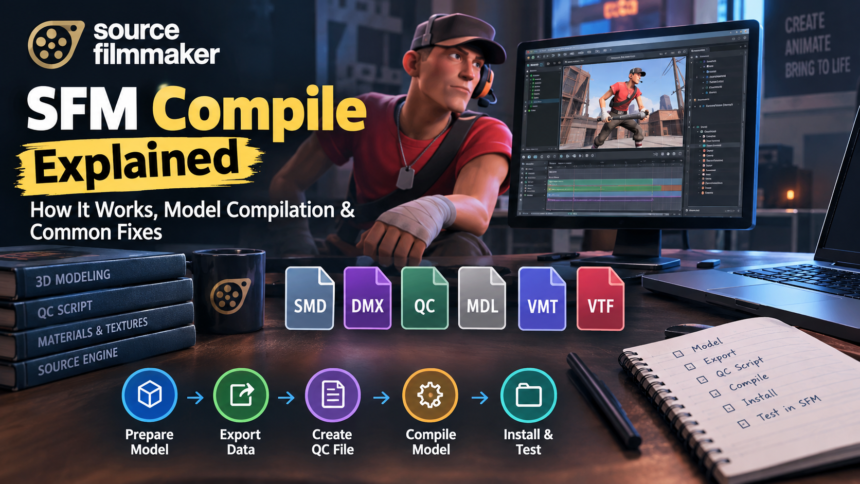
Source Filmmaker (SFM) allows creators to produce animated videos, cinematic scenes, and custom visual projects using assets from Valve’s Source engine. While the software includes tools for animation and scene creation, working with custom 3D models often requires additional preparation. This is where SFM compile becomes important.
SFM compile generally refers to the process of preparing and compiling 3D models, mesh data, materials, and animations into formats that the Source engine can use. For beginners, understanding this process can make it easier to import custom assets, resolve model errors, and organize files correctly.
However, compiling a model is not the same as rendering a video or converting every 3D file automatically. Different assets require different preparation steps, and the correct workflow depends on the model, its materials, and the tools being used.
This guide explains what SFM compile means, how model compilation works, which tools and file formats are involved, and how to troubleshoot common problems.
What Is SFM Compile?
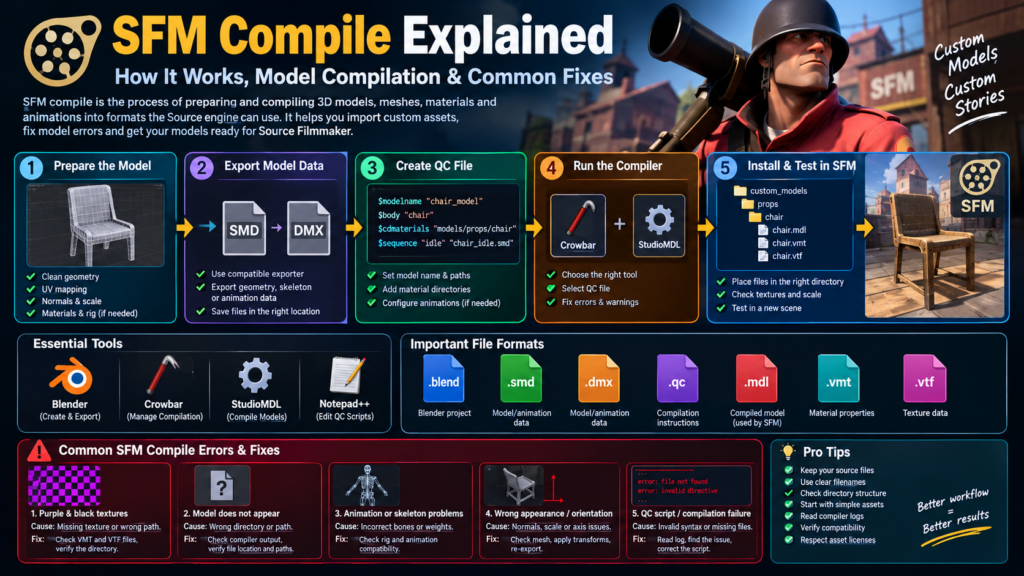
SFM compile is the process of converting appropriately prepared 3D model data into a format compatible with the Source engine. It is commonly used when creators want to bring custom characters, props, or other models into Source Filmmaker.
A model created in software such as Blender cannot usually be loaded directly into SFM in its original project format. It must first be exported into a supported intermediate format, configured with the required compilation instructions, and processed by a compatible model compiler.
The resulting model files can then be placed in the appropriate game directory so Source Filmmaker can locate and use the asset.
The term can also appear in broader discussions about preparing SFM assets. However, technically, model compilation is different from editing a scene, preparing textures, or rendering the final animation.
| 🔗 You may also like: |
|---|
| AI Game Development for Personalized Play Experiences |
| Gaming Updates from eTrueSports and eTrueGames |
Why Is Model Compilation Necessary?
The Source engine expects models and their associated data to follow particular structural and technical requirements. Compilation organizes the prepared model data into files the engine understands.
For example, someone creating a custom table in Blender might need to export its geometry, prepare a QC script, compile the model, and configure its material paths. Once the files are installed correctly, the table can be loaded into an SFM scene.
Without the necessary preparation, the model might fail to load, appear with missing textures, or behave incorrectly. Successful compilation does not automatically fix every modeling problem, but it provides the required bridge between supported source assets and the engine.
How Does the SFM Compile Process Work?
The SFM compile workflow usually involves several stages. Each stage has a specific purpose, and an error in one stage can affect the final result.

1. Prepare the 3D Model
The process begins with a model created or modified in a compatible 3D application. This might be a character, a piece of furniture, a vehicle, or another object intended for an animation scene.
Before exporting, check the geometry, scale, UV mapping, normals, and material assignments. If the model requires animation, its skeleton and vertex weights must also be configured appropriately.
A simple static prop is often a better starting point for beginners because it avoids many of the additional requirements associated with rigged characters.
2. Export the Model Data
After preparing the model, export it using a format supported by the chosen Source toolchain. SMD and DMX are commonly used in Source model workflows.
An SMD file can contain model geometry, skeletal information, or animation data, depending on how it is exported. DMX can store supported model and animation data in a different structure.
The correct export settings depend on the exporter, the model type, and the intended use. Exporting a file does not necessarily make it ready for SFM; the remaining compilation requirements must still be satisfied.
3. Create a QC File
A QC file is a text-based script that provides instructions to the Source model compiler. It can specify the output model name, geometry files, material directories, animation sequences, and other model settings.
For example, a basic QC script might contain directives such as $modelname, $body, and $cdmaterials. These instructions tell the compiler where to find particular assets and how to organize the output.
The exact script depends on the model. A static prop generally needs fewer instructions than a character with multiple animation sequences, facial controls, and a complex skeleton.
4. Run the Model Compiler
Once the source files and QC script are ready, use a compatible compiler to process the model. StudioMDL is the model compiler associated with Source-engine model workflows, while Crowbar provides a graphical interface for managing supported compilation tasks.
During compilation, the tool processes the supplied data and reports errors or warnings. Missing files, invalid instructions, incompatible settings, and incorrect paths can prevent the model from compiling successfully.
Read the output carefully rather than assuming that a completed process means the model is fully functional.
| 🔗 You may also like: |
|---|
| QuikConsole.com Explained |
| Mimshacks: Technology and Digital Tools |
5. Install and Test the Compiled Model
After compilation, place the output files and supporting materials in the appropriate location within the game content structure used by SFM.
Open Source Filmmaker and try loading the model into a test scene. Check whether it appears at the correct scale, displays its textures, and behaves as expected.
If the model is animated, test its skeleton and animation sequences as well. A model that compiles successfully can still contain problems that only become apparent when it is loaded into the application.
Essential Tools Used for SFM Compile
Choosing the right tools makes model compilation easier to manage. Each application handles a different part of the process, from creating geometry to generating engine-compatible files.

1. Blender
Blender is a 3D creation application used to build, edit, texture, and rig models. With a compatible exporter or add-on, creators can prepare assets for a Source-engine workflow.

2. Crowbar
Crowbar is a utility used for working with Source-engine models, including compiling and decompiling supported formats. It provides a graphical interface for tasks that would otherwise require more manual setup.

3. StudioMDL
StudioMDL is the compiler that processes supported model data and QC instructions into Source-engine model files. The compatible version and configuration matter when targeting SFM.

4. A text editor
A text editor such as Notepad++ can help you create and edit QC scripts, inspect file paths, and correct syntax errors before compiling.
These tools serve different purposes and are not interchangeable. Blender prepares the model, the text editor helps configure instructions, and StudioMDL performs the actual model compilation. Crowbar helps manage the workflow when configured for the appropriate Source toolchain.
Important File Formats in SFM Compile
Understanding the file formats involved in SFM compile helps you identify what needs to be edited when something goes wrong.
| File format | Main purpose |
|---|---|
.blend |
Blender’s native project file |
.smd |
Stores supported model, skeletal, or animation data |
.dmx |
Stores supported model and animation data |
.qc |
Contains instructions for the model compiler |
.mdl |
Compiled model data used by the Source engine |
.vmt |
Defines material properties and texture references |
.vtf |
Stores texture data in Valve’s texture format |
These files are related, but they do not all perform the same function. A QC script is not a model, and a texture file does not replace a material definition. The compiled model also depends on the relevant supporting files being available through the expected paths.
For example, a model can compile but display incorrectly if its VMT file points to a missing VTF texture. Identifying the specific file involved is often the quickest way to diagnose the problem.
How to Compile a Custom Model for SFM
If you want to learn SFM compile from scratch, use a simple model and follow a consistent workflow. The exact settings will vary depending on your model, exporter, and Source Filmmaker installation.
Step 1: Choose a Simple Model
Start with a static object, such as a box, chair, or small decorative prop. This allows you to learn the compilation process without having to configure a skeleton or animation sequences.
Check that the model has clean geometry, suitable scale, and properly assigned materials. Keep an editable copy of the original project so you can make corrections later.
Step 2: Export the Required Data
Export the model through an exporter compatible with the intended Source workflow. Confirm that the export contains the required geometry and that the resulting files are saved in the location expected by your QC script.
If your model uses textures, prepare those separately. Source-engine workflows commonly require material definitions and compatible texture files rather than relying on the original application’s material settings.
Step 3: Prepare the QC Script
Create a QC file containing the required model and material information. Check the output path, mesh filename, and material directory carefully.
A path that works in Blender may not be valid in the Source content structure. Use the correct conventions for your compiler and installation, and consult documentation for directives you do not understand.
Step 4: Compile Using a Compatible Tool
Configure Crowbar or the appropriate StudioMDL setup for the Source environment you are targeting. Select the QC file and run the compilation process.
If the compiler reports an error, note the exact message and the file or directive it identifies. Fix the underlying issue before running the compilation again.
Step 5: Add the Model to Source Filmmaker
Place the compiled model and supporting files in the appropriate content directory. Make sure the model path and material paths match the folder structure SFM searches.
Launch SFM, create a test scene, and load the model. Check its appearance and scale before using it in a larger project.
Step 6: Test and Refine
Look for missing textures, incorrect orientation, broken geometry, or other unexpected behavior. If the model includes a skeleton, inspect its rig and test the supported animation sequences.
Change one thing at a time when correcting problems. This makes it easier to determine whether a change fixed the issue or introduced a new one.
| 🔗 You may also like: |
|---|
| Software Discovery Is Broken |
| Improve PC Gaming Performance |
Common SFM Compile Errors and How to Fix Them
Compilation errors can arise from incorrect settings, incomplete files, incompatible data, or problems in the original model. The best solution depends on the error message and the stage where the process fails.

1. Purple and black checkerboard textures
Cause: A missing texture, incorrect material reference, or invalid texture path.
Fix: Check the VMT file, confirm that the referenced VTF file exists, and verify that the material is stored in the expected directory. A model can compile correctly while still having a texture problem.

2. Model does not appear
Cause: The model may be installed in the wrong directory, referenced by an incorrect path, or affected by compilation errors.
Fix: Check the compiler output, verify the generated files, confirm the model’s location, and make sure the path used in SFM matches the installed asset.

3. Animation or skeleton problems
Cause: Incorrect bone names, incompatible animation data, poor weight assignments, or mismatched skeleton structures.
Fix: Inspect the rig and confirm that the model and animation use compatible skeletons. Test the animation data independently where possible.

4. Incorrect model appearance or orientation
Cause: Incorrect normals, scale, axis orientation, or export settings.
Fix: Review the original mesh, apply appropriate transformations when required by the exporter, and check the export configuration. Re-export and compile after correcting the source data.

5. QC script or compilation failure
Cause: Invalid syntax, missing referenced files, incorrect directives, or a mismatch between the script and compiler.
Fix: Read the first meaningful error in the log, verify the referenced filenames, and compare the relevant instructions with documentation for the toolchain you are using.
How to Troubleshoot Efficiently
Avoid changing multiple files at once when a compilation fails. Start with the first relevant error message, locate the affected file, and check whether the problem comes from the source model, QC script, compiler configuration, or installed output.
If a tutorial recommends a specific command or setting, verify that it applies to your Source Filmmaker version and compiler. Different Source-engine branches and tool configurations may not behave identically.
SFM Compile vs. Rendering: What Is the Difference?
SFM compile and rendering are two different processes, even though both can be part of the same production workflow.
Compilation prepares supported assets for use by the Source engine. For a custom model, this usually means processing model data and QC instructions into compiled model files.
Rendering produces the final visual output from a scene. Source Filmmaker uses the scene’s models, cameras, lighting, animation, and other elements to generate images or a video through the appropriate workflow.
For example, if you create a custom character, you may need to compile it before using it in SFM. After animating that character and setting up the scene, you can render the finished animation.
Not every project requires a new model compilation. If you are using existing compatible assets, you may be able to animate and render your scene without compiling any new models.
Best Practices for Better SFM Compilation Results
A reliable workflow depends on good preparation, clear file organization, and careful testing. The following habits can help prevent repeated errors.
-
Keep source files: Save your original Blender project, exported files, QC scripts, and textures so you can make corrections without starting again.
-
Use clear filenames: Give models and supporting files consistent names to reduce confusion when referencing them in scripts.
-
Check directory structure: Keep compiled models and their supporting materials in locations that match the paths used by the model and material definitions.
-
Start with simple assets: Learn the process with static props before attempting complex characters or animated models.
-
Read compiler logs: Error messages often identify missing files, invalid directives, or other issues that need attention.
-
Verify compatibility: Use tools and exporters appropriate for the Source environment you are targeting.
-
Respect asset licenses: Check the permissions for third-party models, textures, and animations before modifying or redistributing them.
These practices make it easier to identify the source of a problem and reuse successful workflows across multiple projects.
Conclusion
SFM compile is an important part of preparing custom 3D models for Source Filmmaker. It connects model creation and editing with the formats and structures required by the Source engine, allowing creators to work with custom props, characters, and other assets.
The process becomes easier when you understand the role of each file format, prepare your model carefully, configure the QC script correctly, and use a compatible compiler. When problems arise, checking file paths, material references, compiler logs, and model compatibility is more effective than repeatedly compiling without identifying the cause.
Whether you are learning SFM for the first time or expanding an existing animation workflow, begin with a simple model and build your skills gradually. With organized files, careful testing, and the right tools, you can create and use custom assets more confidently in Source Filmmaker.
FAQs
What does SFM compile mean?
SFM compile generally refers to preparing and compiling custom model data for use in Source Filmmaker. The process can involve exporting model data, writing a QC script, running a compatible compiler, and installing the generated files correctly.
Is SFM compile free to use?
The tools available for SFM compilation vary. Blender is free and open-source, and Crowbar is available as a community utility. Source Filmmaker and its associated tools have their own availability and usage conditions. Always obtain software from trustworthy sources and check its current license.
Can I compile Blender models for SFM?
Yes, provided the model is prepared and exported using a compatible workflow. You may need to configure geometry, materials, skeletons, and a QC script before using a compatible Source model compiler.
Why does my compiled model have missing textures?
This often happens when material definitions reference incorrect paths or the required texture files are missing. Check the VMT file and its texture references, confirm that the VTF files exist, and verify the directory structure.
Do I need Crowbar to compile an SFM model?
Not necessarily. Crowbar is a convenient option for managing supported model-compilation tasks, but the underlying workflow can also use compatible compiler tools directly. The appropriate choice depends on your setup and experience.
Is compiling a model the same as rendering an SFM video?
No. Compiling prepares assets, such as custom models, for use by the Source engine. Rendering generates the final images or video from a scene. Some projects need both processes, while projects using existing assets may not require new model compilation.
How can beginners learn SFM compile more easily?
Start with a simple static prop. Learn how to export its geometry, prepare the QC script, compile the model, configure materials, and load the result into SFM. Once this workflow makes sense, move on to rigged characters and animation sequences.