File Content Conversion (FCC) is a built-in feature of SAP Process Integration (SAP PI) and SAP Process Orchestration (SAP PO) that transforms flat-file data into structured XML messages and converts XML messages back into text-based files. It allows different business systems to exchange information even when they use different data formats.
In enterprise environments, one application may generate employee records in CSV format, while another application expects XML. Without a conversion mechanism, these systems cannot directly process each other’s data. SAP PI/PO solves this problem through File Content Conversion in its File/FTP Adapter.
This guide explains what File Content Conversion is, how it works in SAP PI/PO, how to configure it, which parameters matter, and how to troubleshoot common problems. It also covers receiver-side conversion, PGP encryption considerations, and important points to understand when migrating integrations to SAP Integration Suite.
What Is File Content Conversion (FCC) in SAP PI/PO?
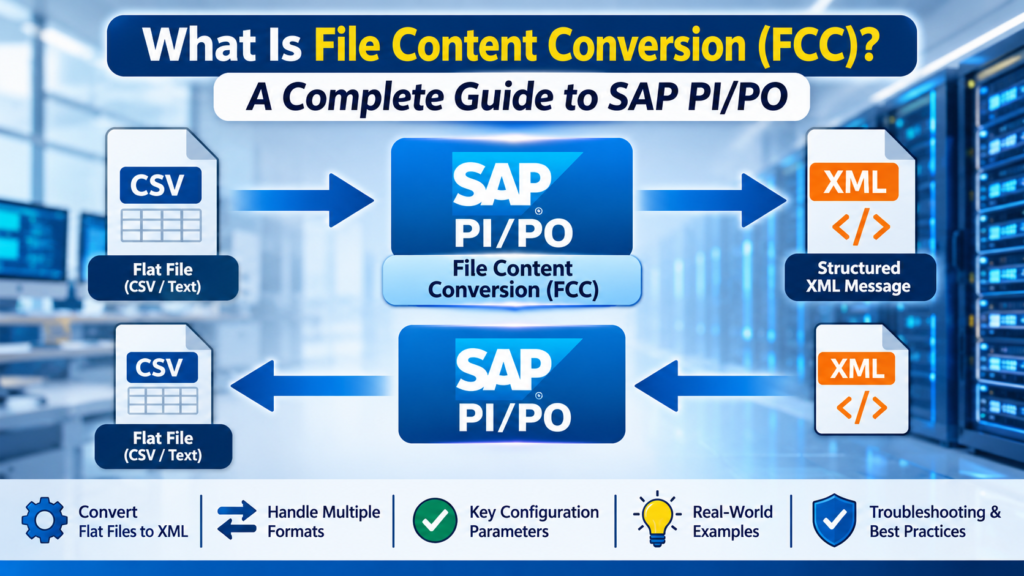
File Content Conversion is a message-processing capability available through the SAP PI/PO File Adapter. It reads structured information from a text-based file and transforms it into an XML message that SAP’s integration runtime can process.
It is particularly useful when an external application produces files in formats such as:
-
CSV (Comma-Separated Values)
-
TXT (plain text files)
-
Tab-delimited files
-
Fixed-width text files
-
Other supported text-based record structures
For example, imagine a company receives an employee file from an external HR application. The file contains employee names, identification numbers, addresses, and phone numbers separated by commas.
SAP PI/PO cannot treat this raw text as a structured XML message automatically. FCC reads the file according to predefined rules, identifies its fields, and creates XML elements containing the corresponding values.
The resulting XML message can then pass through message mapping, routing, and receiver processing before reaching its destination.
An important distinction is that FCC is not a general-purpose file converter that automatically understands every file format. It follows the structure and conversion parameters configured in the communication channel.
| 🔗 You may also like: |
| Guru knowledge base software |
| Software discovery is broken |
Why Is FCC Important in SAP Process Integration?
Businesses regularly exchange information between SAP ERP, warehouse management systems, HR platforms, financial applications, and external business partners.
These applications do not always use the same data formats. Some generate XML messages, while others rely on traditional text files or CSV documents.
FCC provides a standardized way to handle these differences without requiring developers to write a separate parser for every simple flat-file interface.
Its main benefits include:
1. Automated data conversion: It transforms incoming flat-file records into XML messages without requiring manual reformatting.
2. Better system compatibility: Applications that exchange CSV or TXT files can communicate with systems that process XML.
3. Structured message processing: Once converted, the information can be used in SAP PI/PO message mappings and integration processes.
4. Configurable file structures: Developers can define field names, separators, record structures, and rules for handling missing or additional fields.
5. Support for different integration scenarios: FCC can be configured on the sender side or receiver side, depending on the direction of conversion.
These capabilities make FCC particularly useful in organizations that still depend on legacy applications and file-based communication.
How Does File Content Conversion Work?
The conversion process starts when SAP PI/PO receives a text file through a sender File Adapter. The adapter reads the file and applies the content conversion settings defined by the integration developer.
After conversion, the resulting XML message enters the integration pipeline. SAP PI/PO can then perform message mapping and deliver the transformed information to the receiver system.
A typical process follows these stages:
-
File creation: The source application generates a CSV or TXT file.
-
File retrieval: The sender File Adapter reads the file from a configured directory or FTP location.
-
Content conversion: FCC identifies records, fields, and separators and generates XML.
-
Message mapping: The XML source structure is mapped to the target message structure.
-
Receiver processing: The receiver adapter delivers the processed message to the destination.
For example, consider this employee CSV file:
EmployeeName,EmployeeID,Address,Phone
John Smith,101,New York,1234567890
Sarah Jones,102,London,9876543210
After FCC processing, the data could look like this:
<EmployeeData>
    <Record>
        <EmployeeName>John Smith</EmployeeName>
        <EmployeeID>101</EmployeeID>
        <Address>New York</Address>
        <Phone>1234567890</Phone>
    </Record>
    <Record>
        <EmployeeName>Sarah Jones</EmployeeName>
        <EmployeeID>102</EmployeeID>
        <Address>London</Address>
        <Phone>9876543210</Phone>
    </Record>
</EmployeeData>
The exact XML structure depends on the message type and content conversion configuration. The example demonstrates the basic idea: each row becomes a structured record, and each column becomes an XML element.
Types of File Content Conversion in SAP PI/PO
SAP PI/PO supports two main conversion directions through the File Adapter.
1. Flat File to XML (Sender FCC)
Sender-side FCC converts incoming text-based files into XML messages.
This is one of the most common uses of File Content Conversion. The sender File Adapter reads the source file, applies the configured record structure, and creates an XML message for further processing.
For example, a payroll application may generate a CSV file containing employee salaries. The SAP PI/PO sender channel converts the file into XML, allowing the message mapping to transform the employee information into the structure expected by SAP ERP.
The sender channel uses File Content Conversion as its message protocol, with the required parameters maintained under the Content Conversion configuration.
2. XML to Flat File (Receiver FCC)
Receiver-side FCC performs the opposite operation. It converts an XML message into a text-based file that the destination application can understand.
For example, an SAP system may generate an XML purchase order message, but an external supplier may only accept CSV files.
The receiver File Adapter can convert the XML structure into the required flat-file format by using configured field names, separators, and record structures.
SAP documentation describes receiver-side conversion as a way to generate text files from XML structures containing the required data elements.
How to Configure File Content Conversion in SAP PI/PO
To understand FCC practically, consider an integration scenario in which an external HR application sends employee information in a CSV file.
The objective is to read the file, convert it into XML, perform message mapping, and write the resulting XML file into a destination directory.
The configuration involves two main areas:
-
Enterprise Services Repository (ESR): Used to create design-time objects.
-
Integration Directory (ID): Used to configure communication channels and integration processing.
Step 1: Create a Data Type in ESR
Start by creating a data type that represents the structure of the incoming CSV file.
For this example, create a data type named EmployeeData containing four elements:
| Element | Data type |
|---|---|
| EmployeeName | String |
| EmployeeID | String |
| Address | String |
| Phone | String |
Each element represents one column in the source file.
Using string elements is a practical starting point because flat-file values are initially read as text. Additional data validation or conversion can be handled during mapping if required.
Step 2: Create a Message Type
Create a message type that references the EmployeeData data type.
The message type defines the XML message structure that SAP PI/PO will use during integration processing.
Make sure the structure corresponds to the XML elements you expect FCC to generate.
Step 3: Create Service Interfaces
Create the required service interfaces in ESR.
For this example, you need:
-
An outbound service interface representing the incoming employee message.
-
An inbound service interface representing the destination message.
Both interfaces can reference the same message type in a simple demonstration. In a real integration scenario, however, the source and target interfaces commonly have different structures.
Step 4: Create Message Mapping
Create a message mapping between the source and target message types.
For a basic test, map the four employee fields directly:
-
EmployeeName to EmployeeName
-
EmployeeID to EmployeeID
-
Address to Address
-
Phone to Phone
More advanced scenarios may require field conversions, conditional logic, value mapping, or user-defined functions (UDFs).
Step 5: Create Operation Mapping
Create an operation mapping and assign the message mapping to it.
The operation mapping connects the source and target operations and identifies the transformation that should execute during message processing.
It is subsequently referenced in the integration configuration.
Step 6: Create Business Components in Integration Directory
Open the Integration Directory and create the sender and receiver business components.
The sender component represents the external HR application, while the receiver component represents the destination application or system.
These components help SAP PI/PO identify the participating systems in the integration scenario.
Step 7: Configure the Sender File Channel
Create a sender communication channel using the File Adapter.
Configure the source directory, file name pattern, and required file-processing settings.
Under the adapter-specific configuration, select:
File Content Conversion
Next, open the Content Conversion tab and configure the conversion parameters.
For the employee example, the important settings are:
| Parameter | Example value |
|---|---|
| Document Name | EmployeeData |
| Document Namespace | Namespace of the message type |
| Document Offset | 1, if the first line is a header |
| Recordset Structure | Record, * |
| Record.fieldSeparator | , |
| Record.endSeparator | nl |
| Record.fieldNames | EmployeeName,EmployeeID,Address,Phone |
| Record.missingLastFields | add |
| Record.additionalLastFields | error |
The values are illustrative and must match the actual source file and message structure.
Understanding the important parameters
Document Name: Defines the root XML element generated during conversion. It should correspond to the intended XML document structure.
Document Namespace: Specifies the namespace associated with the generated XML document.
Document Offset: Defines how many initial lines should be skipped before the actual data is processed. For example, use 1 when the first line contains column headings rather than employee records.
Recordset Structure: Defines the logical record structures and their occurrence counts. In this example, Record,* identifies a repeating Record structure.
Record.fieldSeparator: Identifies the character separating individual fields. A comma is used for a standard comma-separated file.
Record.endSeparator: Identifies the end of a record. The value nl represents a newline.
Record.fieldNames: Defines the XML element names and their corresponding field order in the incoming file.
Record.missingLastFields: Controls what happens when a record contains fewer fields than configured. The available choices include:
-
ignore: Only fields found in the input are included. -
add: Missing trailing fields are represented by empty XML elements. -
error: Conversion stops when trailing fields are missing.
Record.additionalLastFields: Controls what happens when a record contains more fields than expected.
-
ignore: Additional trailing fields are ignored. -
error: Conversion fails when additional trailing fields are detected.
These parameters are particularly important because an incorrect configuration can produce incomplete XML or cause message processing to fail. SAP also documents additional options for fixed-width records and more complex record structures.
| 🔗 You may also like: |
| Workforce management system cloud technology |
| WhatsOnTech Understanding Technology in a Changing Digital World |
Step 8: Configure the Receiver File Channel
Create a receiver communication channel using the File Adapter.
Specify the destination directory and file name where the converted message should be written.
For this demonstration, configure the receiver to write the mapped XML message without applying another content conversion.
This keeps the example focused on sender-side FCC. In a production scenario, you can configure receiver-side FCC when the destination system requires CSV or another supported text structure.
Step 9: Create an Integrated Configuration Object (ICO)
Create an Integrated Configuration Object in the Integration Directory.
Configure the following sections:
-
Inbound Processing: Select the sender business component and sender File Adapter channel.
-
Receiver Determination: Identify the receiver business component.
-
Interface Determination: Select the receiver service interface.
-
Outbound Processing: Assign the operation mapping and receiver communication channel.
Save and activate the required objects.
The integration configuration connects the sender channel, message processing, mapping, and receiver channel into one executable scenario.
Step 10: Test the Conversion
Place the sample CSV file in the configured source directory.
After the sender channel picks up the file, check message processing in SAP PI/PO monitoring.
Verify the following:
-
The source file is detected successfully.
-
The sender adapter converts the flat-file data into XML.
-
The XML contains the expected employee records.
-
Message mapping completes successfully.
-
The receiver channel writes the output file into the destination directory.
If the output contains the correct XML structure and employee information, the basic FCC configuration is working.
Important FCC Configuration Parameters and Their Uses
Understanding the parameters is more important than simply copying settings from an example.
Different source files require different conversion rules, especially when they contain multiple record types or fixed-width fields.
| Parameter | Main purpose |
|---|---|
| Document Name | Defines the XML root element |
| Document Namespace | Defines the XML namespace |
| Document Offset | Skips initial lines |
| Recordset Structure | Defines logical record structures |
| fieldSeparator | Separates fields |
| endSeparator | Identifies record endings |
| fieldNames | Defines field names and order |
| fieldFixedLengths | Defines fixed-width field lengths |
| missingLastFields | Handles missing trailing fields |
| additionalLastFields | Handles additional trailing fields |
For example, a comma-separated employee file requires a field separator, while a fixed-width file may use fieldFixedLengths to identify where one field ends and another begins.
The SAP conversion documentation explains these configuration options and how they affect the generated XML structure.
Common Problems in SAP PI/PO File Content Conversion
Even a correctly designed integration can encounter conversion errors when the incoming file differs from the expected structure.
Here are some common problems and practical ways to investigate them.
1. Incorrect Field Separator
A frequent problem occurs when the configured field separator does not match the source file.
For example, the source file may use semicolons, but the sender channel is configured with commas.
As a result, the adapter may interpret the entire line as one field rather than identifying separate columns.
Solution: Inspect the original file and configure the exact separator used by the source application.
2. Missing or Additional Fields
Sometimes a source application sends records containing fewer or more columns than expected.
For example, the configured structure expects four employee fields, but an incoming record contains only three.
Solution: Review missingLastFields and additionalLastFields. Select an appropriate handling option based on business requirements rather than automatically ignoring unexpected data.
3. Incorrect Document Offset
When a CSV file contains a header row, the adapter may attempt to process that row as actual business data.
This can produce unexpected XML values or mapping errors.
Solution: Check whether the source file contains header lines and configure Document Offset accordingly.
4. Incorrect Recordset Structure
A mismatch between the configured record structure and the actual file layout can prevent the adapter from generating the expected XML.
This is especially true when files include multiple record types, such as employee headers and employee details.
Solution: Review the ESR data type, message type, and Recordset Structure settings together.
5. Character Encoding Problems
Files containing international characters, special symbols, or accented letters may produce incorrect output if the source encoding is interpreted incorrectly.
Solution: Confirm the actual encoding used by the source system and configure the adapter’s relevant character-set settings accordingly. Also verify that the resulting XML preserves the original values.
6. Message Mapping Errors
FCC may successfully generate XML while the subsequent message mapping fails.
This can happen when generated element names, namespaces, or occurrences do not match the source message structure expected by the mapping.
Solution: Inspect the converted XML before troubleshooting the mapping. Confirm that its structure matches the ESR message type.
File Content Conversion with Multiple Record Structures
Not every flat file contains identical rows. Some business files include different record types with different fields.
For example, an employee information file might contain:
-
Employee header records
-
Employee personal information
-
Employee salary details
Each record type may have its own field structure.
SAP PI/PO supports more complex recordset configurations in which multiple logical structures can be defined with their own field names, separators, and occurrence rules.
For example:
EmployeeHeader,1,EmployeeDetails,*
This configuration represents one EmployeeHeader structure followed by a variable number of EmployeeDetails structures.
Each structure can have separate conversion parameters, such as:
EmployeeHeader.fieldSeparator=,
EmployeeDetails.fieldSeparator=,
This approach is useful when integrating legacy systems that generate multiple types of records in a single text file.
However, the source file must follow the configured record layout. FCC does not automatically identify arbitrary record types or validate every business rule.
FCC with PGP Encryption and Decryption in SAP PI/PO
Some organizations exchange sensitive information through encrypted files. In these scenarios, PGP (Pretty Good Privacy) encryption can be used to protect information during file exchange.
PGP uses public-key cryptography, with public and private keys serving different purposes in encryption and decryption.
When combining PGP with File Content Conversion, the processing sequence is important.
Incoming Files: PGP Decryption and Flat File to XML
When an incoming CSV file is PGP-encrypted, the File Adapter’s standard FCC processing cannot directly interpret its encrypted contents.
The file must first be decrypted.
A typical sender-channel module sequence is:
-
Localejbs/PGPDecryption: Decrypts the incoming PGP-encrypted payload. -
AF_Modules/MessageTransformBean: Performs the required flat-file transformation in the configured processing scenario. -
CallSAPAdapter: Executes the standard adapter processing.
The exact module configuration depends on the installed adapter modules and implementation requirements.
After decryption and conversion, the resulting XML can be processed through message mapping and delivered to the receiver system.
Outgoing Files: XML to CSV and PGP Encryption
For outgoing messages, the process works in the opposite direction.
The XML message is first converted into the required flat-file structure. PGP encryption is then applied to protect the outgoing data.
A typical sequence is:
-
Localejbs/AF_Modules/StrictXml2PlainBean: Converts XML into plain-text output according to the configured transformation. -
Localejbs/PGPEncryption: Encrypts the resulting file.
The receiver can then decrypt the file using the appropriate private key.
Important: PGP encryption and FCC are separate operations. Their sequence, key configuration, module availability, and error handling must be tested together before production deployment.
File Content Conversion in SAP PI/PO vs. SAP Integration Suite
Organizations moving from SAP PI/PO to SAP Integration Suite should pay particular attention to existing FCC configurations.
SAP Integration Suite’s Cloud Integration environment provides its own conversion capabilities, including CSV-to-XML and XML-to-CSV converters.
However, migrating an existing PI/PO integration does not necessarily mean that its original FCC configuration will work identically in the cloud environment.
The two platforms can differ in how they interpret file structures, configure schemas, and generate XML elements.
For example, SAP Cloud Integration uses an XSD to define the structure for its CSV-to-XML converter. Therefore, developers should verify the generated XML against the original PI/PO output before reusing existing message mappings.
SAP’s migration documentation also identifies manual intervention requirements when converting certain PI/PO FCC parameters into Cloud Integration configurations.
COMPARISON
| Feature | SAP PI/PO | SAP Integration Suite |
|---|---|---|
| Flat file to XML | File Adapter FCC | CSV-to-XML Converter |
| XML to flat file | Receiver File Adapter FCC | XML-to-CSV Converter |
| Structure definition | ESR and FCC parameters | XSD and converter settings |
| Custom transformation | Message Mapping and UDFs | Message Mapping and scripts |
| Integration environment | On-premises or supported PI/PO deployment | Cloud-based integration |
For successful migration, compare the original and converted payloads using representative test files. Pay special attention to empty fields, delimiters, namespaces, multiple record types, and special characters.
Best Practices for Using FCC in SAP PI/PO
A reliable FCC implementation requires more than selecting the correct message protocol. Developers should understand the source file format and verify that the configuration matches actual business data.
The following practices can help avoid unnecessary integration failures.
1. Understand the source file before configuration.
Inspect the original file to identify its separators, record endings, field order, header rows, and encoding. Do not assume that every CSV file follows the same structure.
2. Maintain consistent ESR structures.
Ensure that the data type and message type represent the XML structure expected after conversion. Incorrect element names or occurrences can create problems during message mapping.
3. Handle missing and additional fields carefully.
Choose appropriate error-handling rules. Ignoring unexpected fields may hide important business information, while strict validation can prevent incomplete records from entering downstream systems.
4. Test different file scenarios.
Test normal records, empty values, missing fields, additional fields, special characters, and multiple records. Include files that represent actual production conditions.
5. Monitor message processing.
Use SAP PI/PO monitoring to investigate conversion failures and identify whether the problem occurs during file retrieval, FCC processing, message mapping, or receiver delivery.
6. Protect sensitive information.
Use secure file-transfer protocols, appropriate access permissions, and encryption where required. Avoid exposing confidential employee or financial information in monitoring logs.
7. Document conversion parameters.
Maintain documentation of record structures, field separators, namespaces, encoding, and error-handling settings. This makes future troubleshooting and migration easier.
| 🔗 You may also like: |
| Digitaledge org |
| Sparkpressfusion com explained |
Final Thoughts
File Content Conversion remains an important capability in SAP PI/PO because many enterprise applications still exchange information through CSV, TXT, and fixed-width files.
By configuring the sender or receiver File Adapter correctly, developers can automate file transformation and connect applications that otherwise use incompatible data structures.
Understanding parameters such as Recordset Structure, fieldSeparator, endSeparator, fieldNames, and Document Offset is essential for building reliable integrations. Proper testing, error handling, and monitoring are equally important.
For organizations maintaining existing SAP PI/PO interfaces or planning a migration to SAP Integration Suite, understanding how FCC works provides a valuable foundation for managing file-based integration scenarios.
FAQs
What does FCC stand for in SAP PI/PO?
FCC stands for File Content Conversion. It is a capability of the SAP PI/PO File Adapter that converts flat-file data into XML or XML messages into text-based files.
What is the main purpose of File Content Conversion?
Its main purpose is to enable communication between applications that use different data formats. It allows SAP PI/PO to process flat files as structured XML messages and generate text files for external applications.
Can FCC convert CSV files into XML?
Yes. Sender-side FCC can convert CSV files into XML by using configured field separators, record structures, field names, and other conversion parameters.
Can SAP PI/PO convert XML into CSV?
Yes. Receiver-side FCC can convert XML messages into text-based output, including CSV-style files, when the receiver channel is configured with the appropriate conversion settings.
What is Recordset Structure in SAP PI/PO?
Recordset Structure defines the logical structures contained in a flat file, including their names and occurrence counts. It helps SAP PI/PO identify repeating records and different record types during conversion.